
ADD A BLOCK TO YOUR WEBSITE
Learn how to add a black to your website with our step by step guide.
STEP 1:
Click on the "Blocks" Icon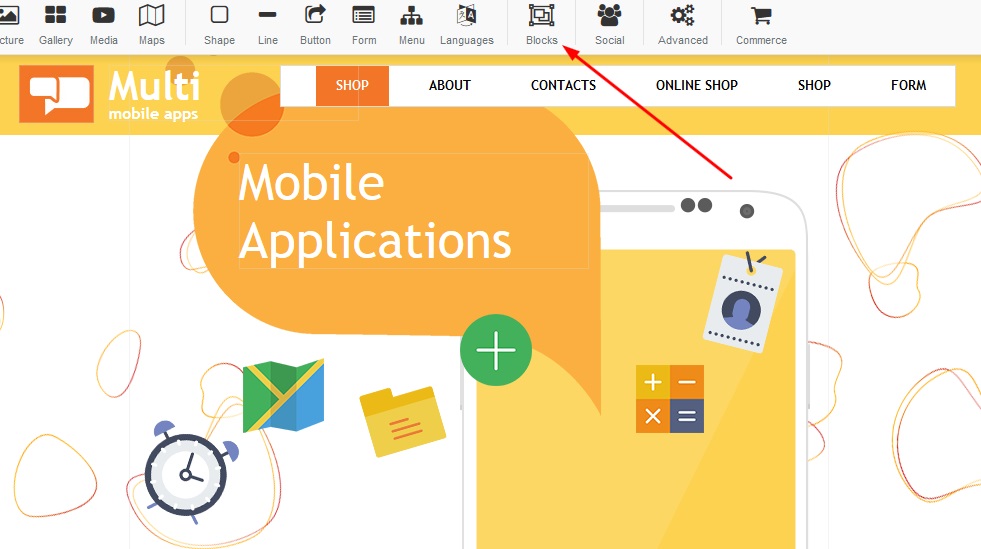
STEP 2:
Once you open the "Blocks" button, you will notice there are a variety of choices you can choose from - below are the options for your "About us" section (Please note: Wording can be customized - should you like to use this block and have this subjected according to a different category) :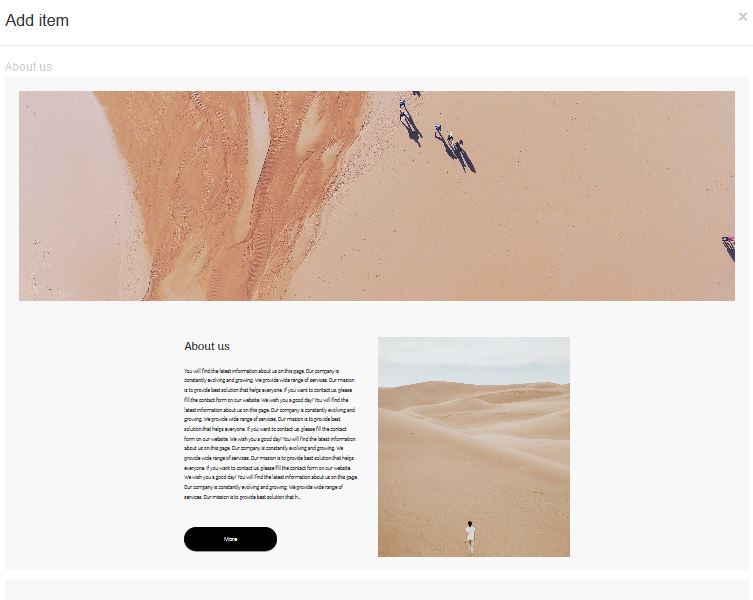

STEP 3:
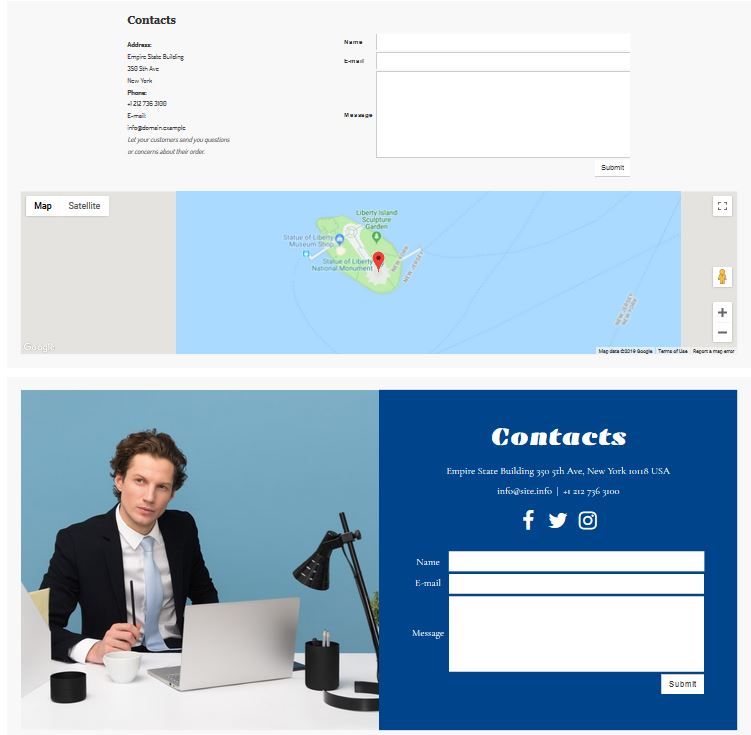
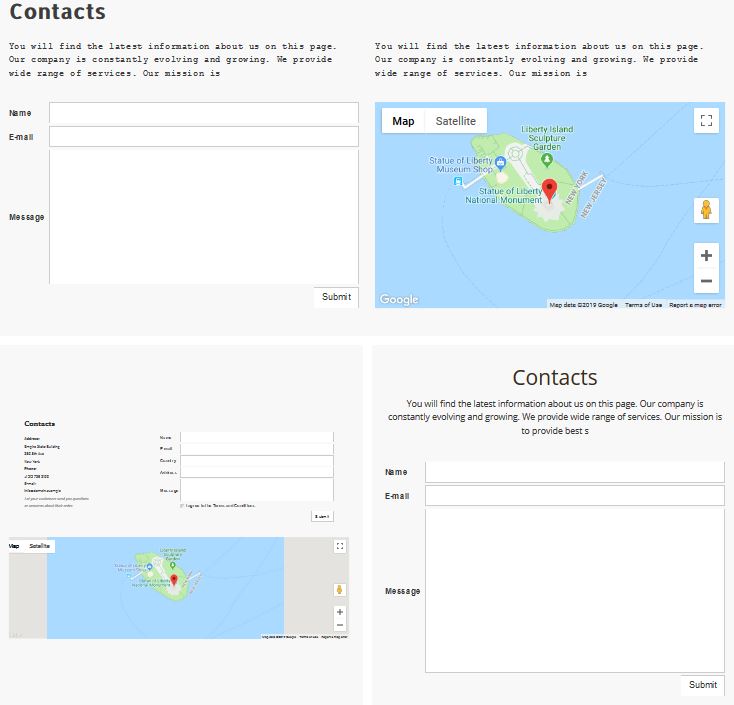
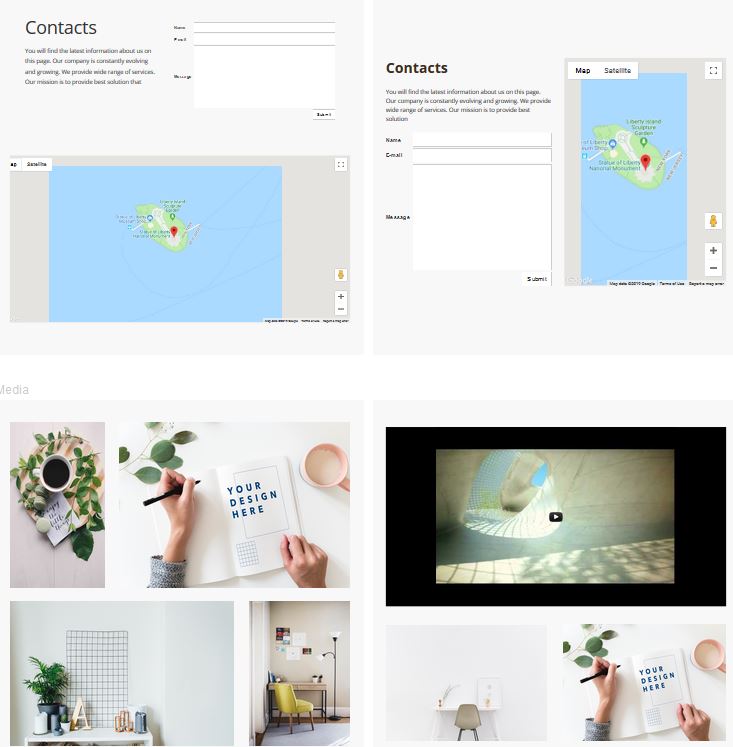
Once you open the "Blocks" button, you will notice there are a variety of choices you can choose from - below are the options for your "Contact Us" section (Please note: Wording can be customized - should you like to use this block and have this subjected according to a different category) :
STEP 4:
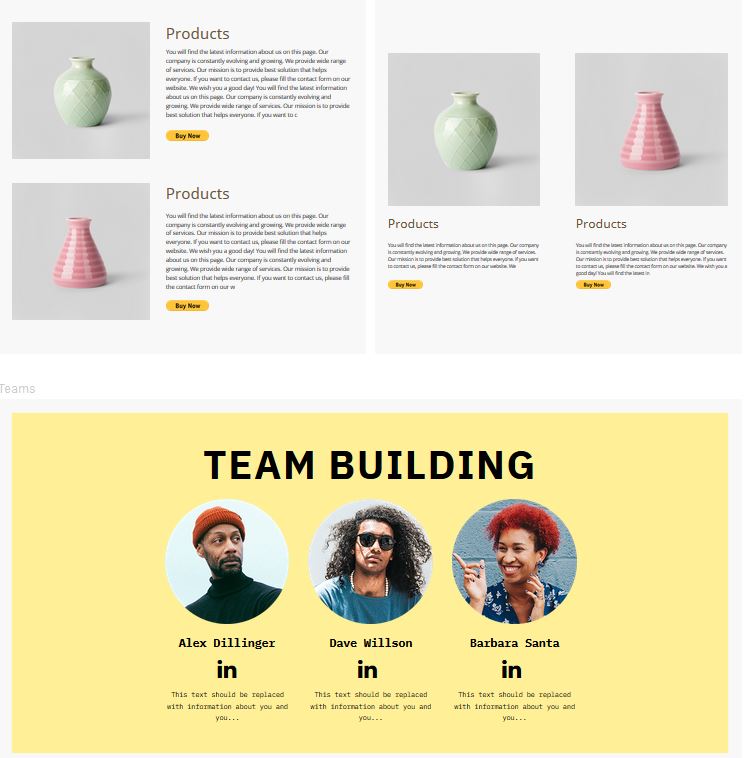
Once you open the "Blocks" button, you will notice there are a variety of choices you can choose from - below are the options for your "Products" section (Please note: Wording can be customized - should you like to use this block and have this subjected according to a different category) :
STEP 5:
Once you open the "Blocks" button, you will notice there are a variety of choices you can choose from - (Please note: Wording can be customized - should you like to use this block and have this subjected according to a different category) :